Connect your AI to Total Football Studio
Short answer
How do I connect my AI to Total Football Studio?
In Settings > AI connections. Claude and ChatGPT connect by signing in: add https://totalfootballstudio.com/mcp as a connector and sign in. Claude Code, Codex, Cursor, VS Code, Gemini CLI and Antigravity take a key you make there. Then ask in a sentence, and what your AI makes lands in your studio. It is included in Amateur and Pro.
- Where
- Settings > AI connections.
- Plan
- Amateur (750 requests a month) and Pro (2,500 a month); 30% of that on a free trial. Not on Beginner.
- Last checked
Step by step
-
Open AI connections
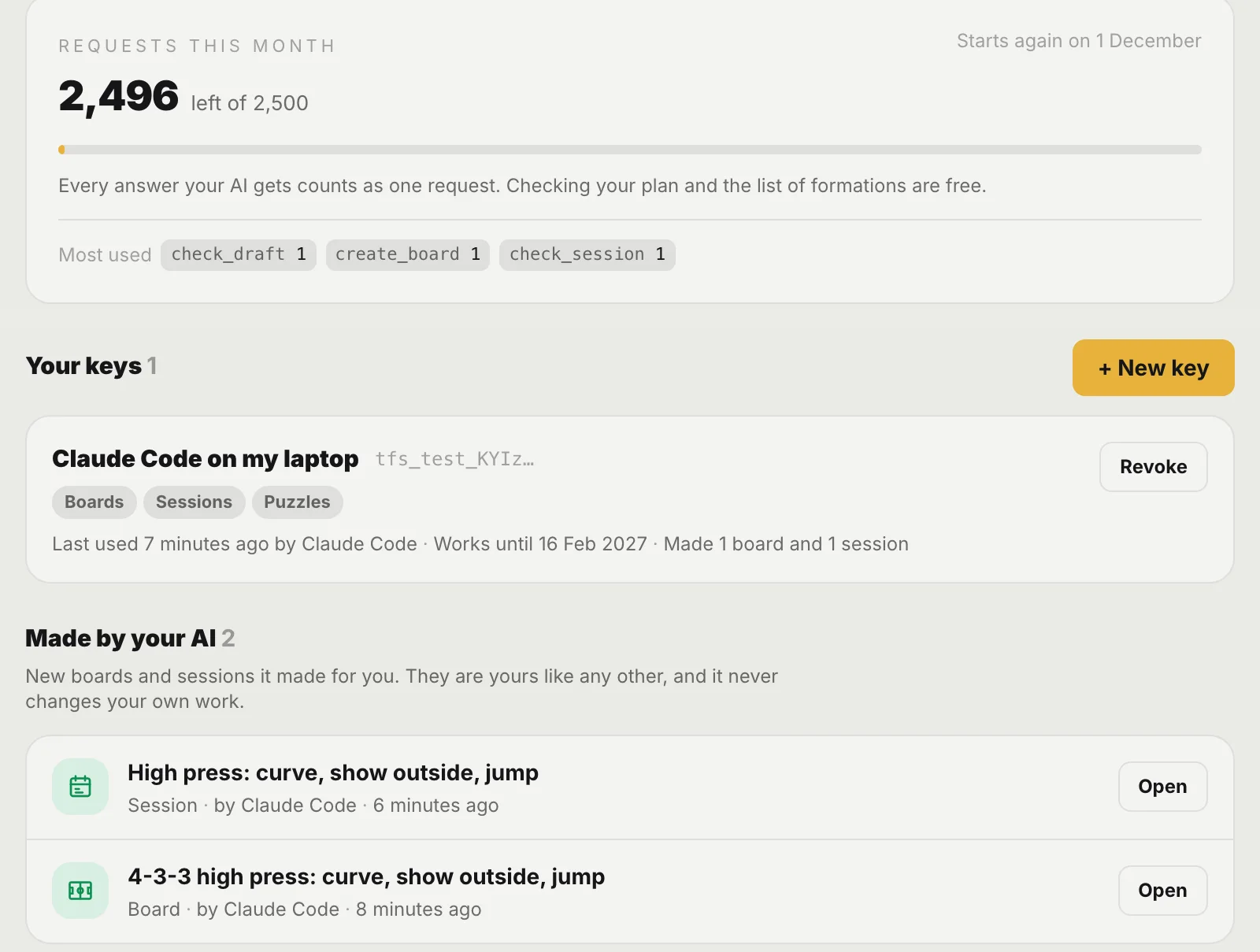
In the portal, open Settings and go to AI connections. It shows the requests you have left this month, the apps you connected and the keys you made.
-
Claude or ChatGPT: sign in
In Claude, open Settings > Connectors, choose Add custom connector, name it Total Football Studio and paste https://totalfootballstudio.com/mcp. Press Connect: our sign-in page opens, you tick what it may reach and press Allow.
In ChatGPT, open Plugins, press + and choose Add custom MCP server. Name it, paste the same address as the Server URL and pick OAuth, tick I understand and want to continue and press Create as a plugin, then sign in and press Allow. In a chat, type @ and pick Total Football Studio.
-
Any other app: make a key
For Claude Code, Codex, Cursor, VS Code, Gemini CLI or Antigravity, press New key, pick the app and tick the areas it may reach: Boards, Sessions and Daily Puzzle to start with, Manager Lab and Your team when you want them. Copy the one line or file it shows into the app. The key is shown once, so paste it straight in.
-
Ask in a sentence
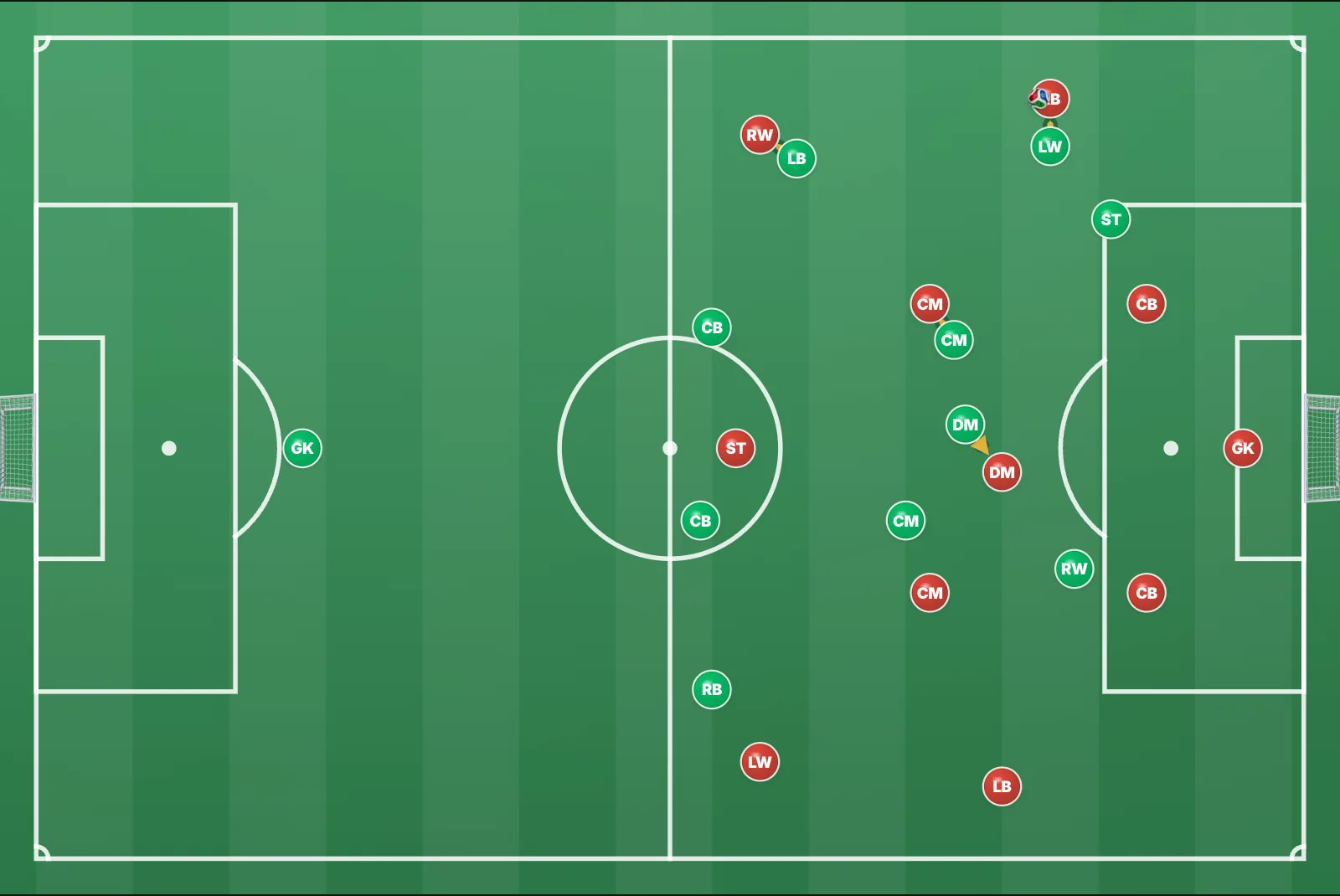
Ask for what you want the way you would tell a coach: “Draw our 4-3-3 press when their centre-back has it, three phases.” or “Plan next week: three sessions for 16 players, 75 minutes.” Your AI drafts in real metres, runs the studio’s own check, fixes what it says and saves a new board or session.
-
Open what it made
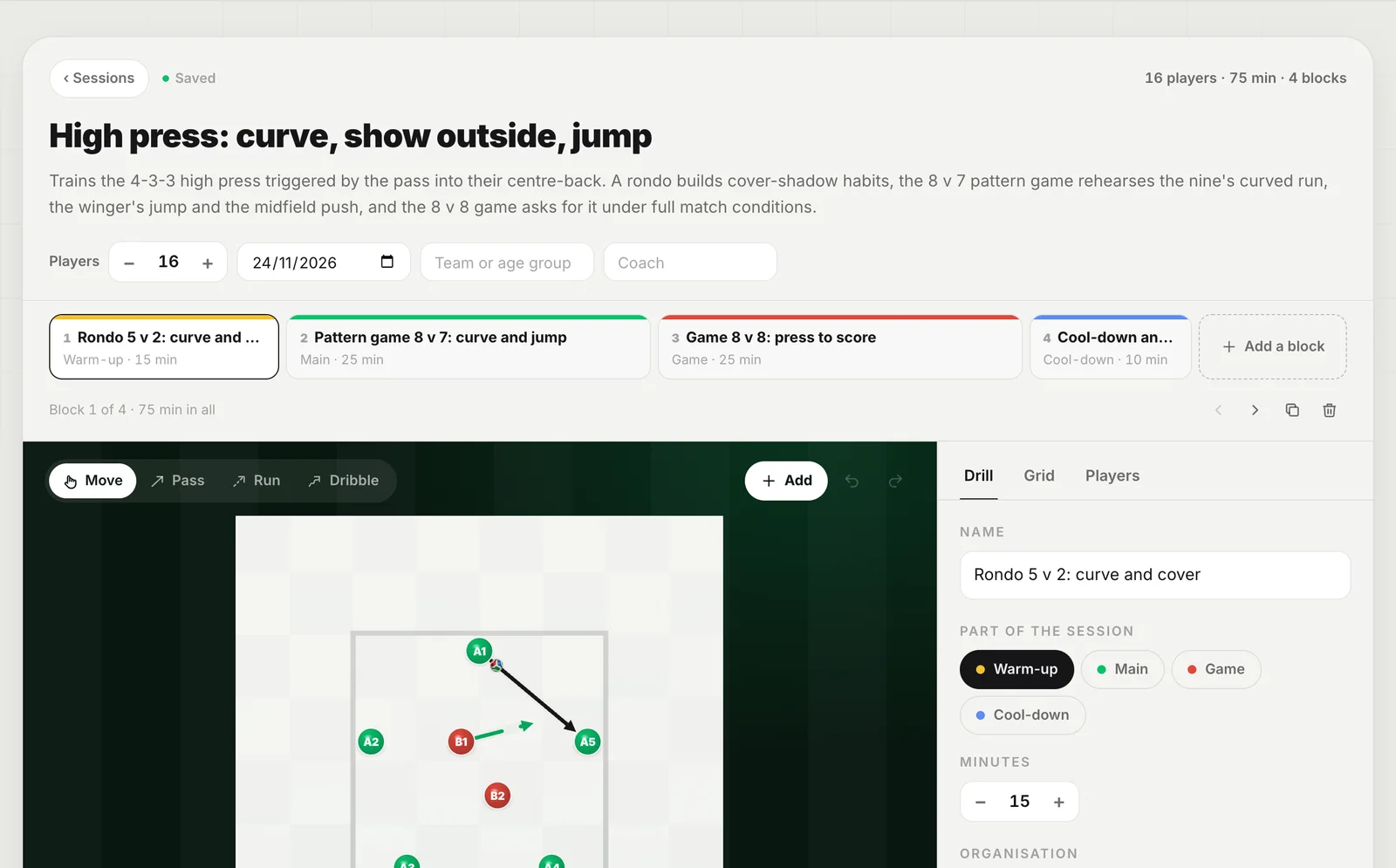
It lands in My boards or Sessions like your own work, and a board it made says so until you clear it. Settings lists what each app or key made, and you can disconnect an app or revoke a key at any time.
What your AI can do
It gets the studio’s own tools, in five areas you choose per app or key:
- Boards: read any board in metres, draw a new one with its whole look (pitch view, upright for a reel, tilt, zones, labels, camera), check it, save it, change any board in place with Restore, make a copy.
- Match Video: read a clip with the studio’s own figures at any second, put figures and freezes on its timeline, read and add tagged moments on a full match, make a playlist. You upload and track the clip in the studio.
- Training sessions: read your plans, write a session block by block on real grids, check it, save it to your planner and put it on a day.
- Your team (Pro): prep a match from your fixtures, availability and opposition files, read any player’s season, put a team sheet on a board and plan a training day.
- Manager Lab: read a Football Manager save on the Lab’s own numbers, and put any tactic on a board with the names on.
- Daily Puzzle: study and replay past puzzles with the scored answer. Today’s stays yours to answer.
Ideas to ask, area by area
Each of these is a job your AI can do in your studio today. Copy one, or say it your own way:
- Boards: “Draw our 4-3-3 press when their centre-back has it, three phases.”
- Boards: “Draw a corner routine: near-post flick, back-post runner, two phases.”
- Boards: “Review my last board phase by phase and tell me where the gaps are.”
- Boards: “Make my last board upright and tilted for a reel, with one zone on each idea.”
- Boards: “Shade the half-space on phase 2 of my 4-3-3 board and label it.”
- Boards: “In my match video, how high was their back line when we won the ball?”
- Boards: “Tag the turnovers I read out from Saturday’s match, then make a playlist of them.”
- Boards: “Add a fourth phase to the press you just drew: we win it and break.”
- Boards: “Make a copy of my 4-2-3-1 board so I can try a version where the ten drops in.”
- Sessions: “Plan next week: three sessions for 16 players, 75 minutes.”
- Sessions: “Turn my 4-3-3 press board into a session that trains it, for Tuesday.”
- Sessions: “Build a rondo warm-up into a 60 minute pressing session for 14 players.”
- Sessions: “Put my finishing session on Thursday as well.”
- Your e-books: “What do my e-books say about pressing triggers? Put the key board in my studio.”
- Your e-books: “Build Tuesday’s session from two drills in my e-books, for 16 players.”
- Your e-books: “Sum up chapter 3 of my 4-3-3 Playbook in five points for my staff.”
- Your e-books: “Put a board from my e-book in the studio with my players’ names on the counters.”
- Your team: “Prep Saturday: who is out, a team sheet board and the opponent’s file.”
- Your team: “How have we done against teams that play a back three?”
- Your team: “How is our number 9’s season going: minutes, goals and training?”
- Your team: “Give the day after Saturday’s match a recovery theme in the season plan.”
- Manager Lab: “Which formation suits my squad, and who is the weak link?”
- Manager Lab: “Put my save’s best 4-3-3 on a board with the names on.”
- Manager Lab: “Who are my best young players, and where should they play?”
- Daily Puzzle: “Explain yesterday’s puzzle and why the best plan works.”
- Daily Puzzle: “Let me try a different answer on last Monday’s puzzle.”
- Daily Puzzle: “Which puzzle this month did I score lowest on, and what did I miss?”
What it never does
It never deletes your work and never touches what you did not ask about. It adds new boards, sessions, copies, tagged moments and playlists. When you ask it to change a board, it changes that board in place and keeps the version from before: the board shows a Restore button that puts it back in one click. Your sessions, team sheets and Manager Lab saves are never changed.
Which areas to tick
A new key starts with 3 areas ticked: Boards, Sessions and Daily Puzzle. Tick Manager Lab and Your team only for the apps that need them. Player notes (ratings, reviews, private notes, years of birth) is a tick of its own and never on by default: your players are often children, and what your AI reads goes to the AI company you chose.
Requests
Reading or saving something is 1 request, a picture of a board is 3, and checking your plan is free. Your plan’s allowance starts again each month, and Settings shows what is left. Your AI app’s own subscription is separate: we never charge for a model.
Questions
What is the Total Football MCP server?
A connection between the AI app you already use and your Total Football Studio account, built on MCP, the open Model Context Protocol. Your AI gets the studio’s own tools: it reads your boards and training sessions, draws new boards in real metres, plans sessions into your planner, preps a match from your team, reads your Manager Lab saves and studies past Daily Puzzles. Everything it makes is saved to your account and opens in the studio like your own work.
Which AI apps can I connect to Total Football Studio?
Claude and ChatGPT connect by signing in, with no key to copy. Claude Code, Codex, Cursor, VS Code, Gemini CLI and Antigravity connect with a key you make in Settings > AI connections. Any other app that speaks MCP over HTTP with a Bearer header works the same way at https://totalfootballstudio.com/mcp.
Does connecting my AI cost extra?
It is included in Amateur (750 requests a month) and Pro (2,500 a month); on a free trial you get 30% of it, and teams pool one allowance per seat. Beginner has no AI connections. If you need more, packs of 5,000 for €4.99 or 20,000 for €14.99 never expire, or pay as you go at €1.49 per 1,000 up to a limit you set. Your AI app’s own subscription is separate: we never charge for a model.
Can an AI delete or change my boards?
It never deletes them. It changes a board only when you ask it to, and the board keeps the version from before: it shows “Changed by” with a Restore button that puts it back in one click. Everything else it only adds: new boards, sessions, copies, tagged moments and playlists. Your sessions, team sheets and Manager Lab saves are never changed. Settings lists everything your AI made, and you can revoke a key or disconnect an app at any time; its next call is refused.
Can my AI see my players?
Only if you tick Your team for that key or app, and only on Pro, where the team pages are. It then reads what those pages show: fixtures, results, minutes, who is out and the opposition files. Ratings, reviews, private notes and years of birth need a second tick, Player notes, which is never on by default: your players are often children, and what your AI reads goes to the AI company you chose. Your AI can put a team sheet on a new board, but it never changes the team sheet itself.